
Guide to collecting Customers' phone numbers
To send WhatsApp messages to customers (broadcasts, cart recovery, order updates, etc.), you need a valid customer phone number that includes the country code (e.g., +84912345678)
This article guides you through configuring Shopify Checkout to:
- Require or allow customers to enter their phone number
- Display an opt-in checkbox for SMS/WhatsApp marketing
- Ensure phone numbers are saved in the correct format so WASend can use them
Step 1: Log in to Shopify Admin
Go to https://admin.shopify.com and log in with your store owner account.
Step 2: Go to the Checkout settings
- In the bottom-left corner, click Settings (gear icon ⚙️)
- In the left-hand menu of the Settings page, click Checkout
Step 3: Configure customer contact methods
Scroll down to the Customer contact method section. You’ll see two options:
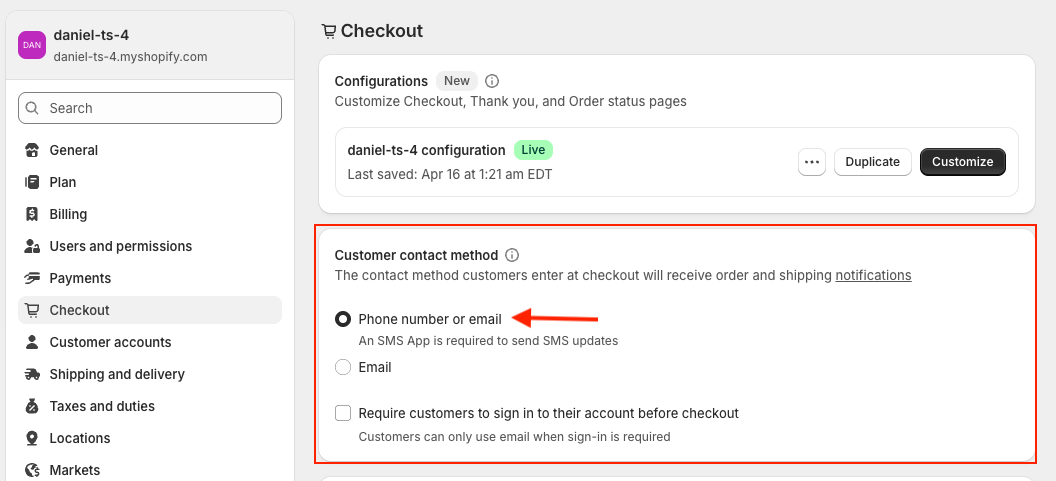
👉 Select "Phone number or email" and click Save.
Step 4: Require customers to enter a phone number at the shipping address
This is the most important step if you want to collect phone numbers for every order.
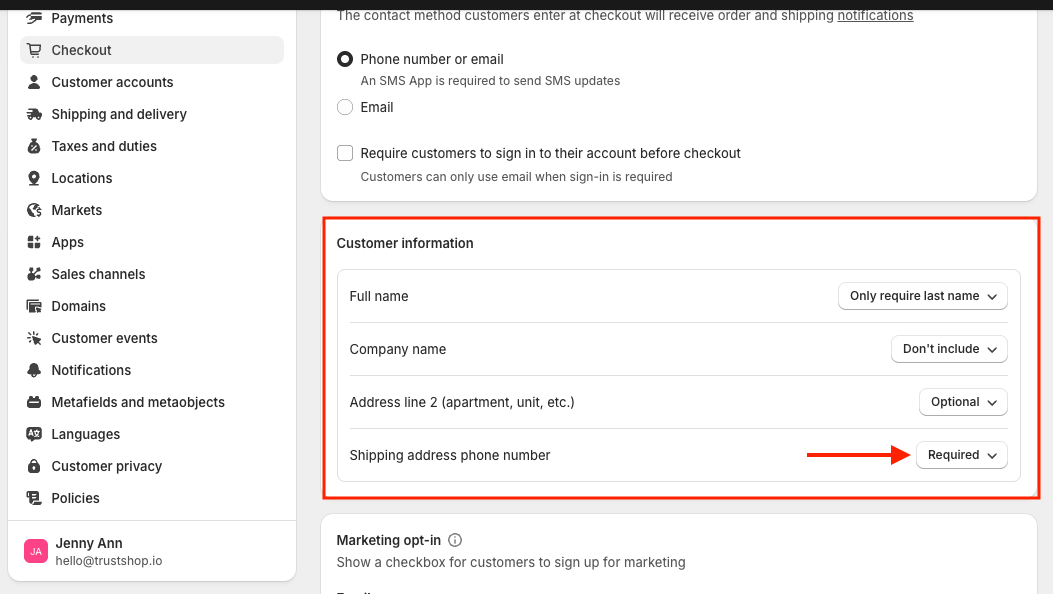
- Still on the Settings > Checkout page, scroll down to the Customer information section
- Find the " Shipping address phone number " field
- Select Required or Optional and click Save
Step 5: Check the box to agree to receive marketing messages (SMS opt-in)
This is a legally required step if you want to send marketing messages (promotional broadcasts, flash sales, etc.) to customers.
- Still on the Settings > Checkout page, scroll down to the Marketing options section
- Under SMS, select "Checkout only"
- Click Save
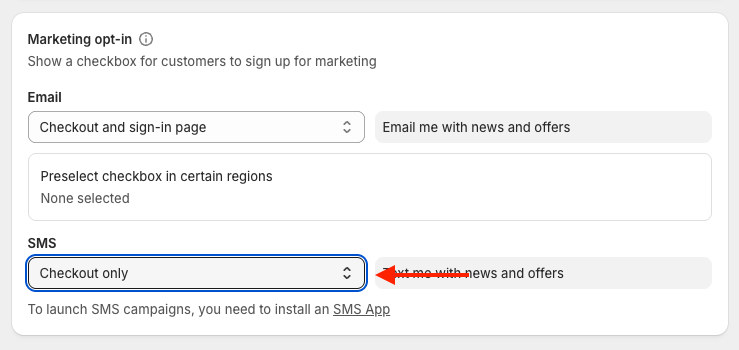
After this step, a checkbox will appear on the customer’s checkout page, such as:
☐ Text me with news and offers
When the customer checks this box, it constitutes consent —which is required under the TCPA (U.S.), GDPR (EU), and similar consumer protection laws in Vietnam/Southeast Asia.
Step 6: Customize the opt-in message (important for WhatsApp)
By default, Shopify uses the text "Text me with news and offers" — this text is a bit vague for WhatsApp. You should edit it so customers know they are signing up to receive messages via WhatsApp.
- On the Settings > Checkout page, scroll to the bottom of the page and locate the Checkout language section
- Click the " Edit checkout content" button
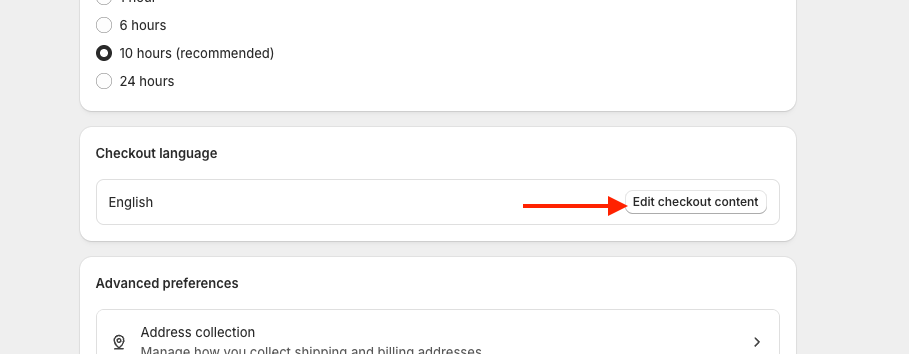
After clicking “Edit checkout content,” a form will open where you can edit the content. There are two fields you need to modify
Accept SMS checkbox label→ this is text #1 ("Text me with news and offers")Checkout marketing SMS disclaimer(or similar) → this is text #2 (the long disclaimer)
- Click the “magnifying glass in the top-right corner” to search, and enter “Text me with news and offers” or “By signing up via text” into the search bar to find the corresponding text to edit. If you’re using a different language, search using your specific language. You can also find that text outside the checkout page
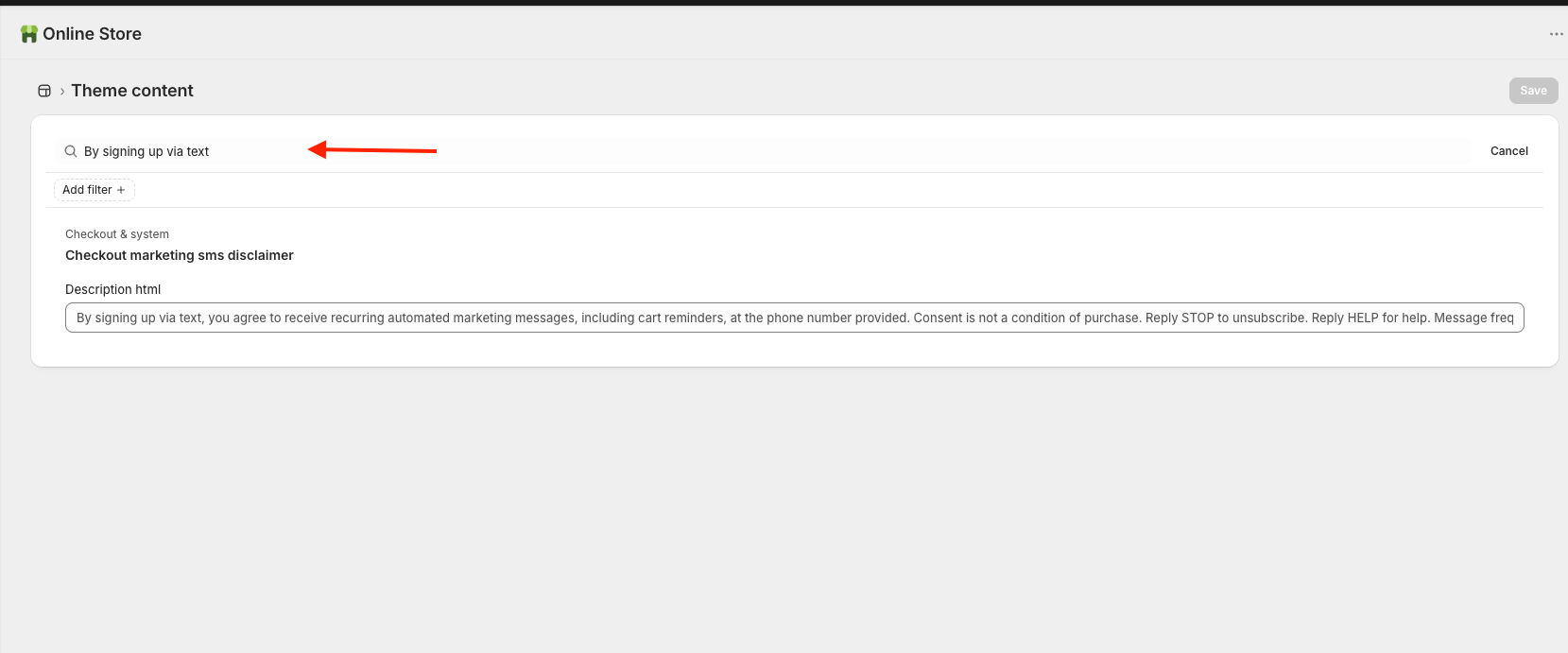
💡 Suggested template — Field 1:
Accept SMS checkbox label
- Message me on WhatsApp with news, offers, and order updates
- Subscribe to WhatsApp updates and get 10% off your next order
💡 Suggested text — Field 1:
Checkout marketing SMS disclaimerBy signing up via WhatsApp, you agree to receive recurring automated marketing messages from [Store Name], including cart reminders and order updates, at the phone number provided. Consent is not a condition of purchase. Reply STOP to unsubscribe. Reply HELP for help. Message frequency varies. Message and data rates may apply. View our [Privacy Policy] and [Terms of Service].
Step 7: Review the results
- Open the store page in Incognito mode
- Add a product to your cart and proceed to checkout
- You will see:
- A phone number input field (required if you selected "Required")
- Checkbox to agree to receive WhatsApp/SMS messages
If you see both → configuration was successful
Need help?
Stuck, or seeing an error not listed here? Our team is happy to help.
- In the app: click Chat with support
- WhatsApp: +84 846 043 192
- Email: [email protected]