
How to connect your WhatsApp account
Before you start
- A Facebook account that manages your business.
- A Meta business portfolio where you are an admin. No portfolio? Meta creates one during setup.
- A mobile number you control that can get an SMS or a call. Landline and VoIP numbers may not work. No number you can use? Contact support and we can provide a WhatsApp number for your country.
- A number that isn't on personal WhatsApp. If it is, delete that account first (Settings > Account > Delete my account). Its chat history is lost, so back up first. The number can take up to 3 minutes to become available.
- A computer with Chrome or Edge, with pop-ups allowed.
Not ready? Click Explore with sample data on the connect screen to try the app first.
Connect in 3 steps
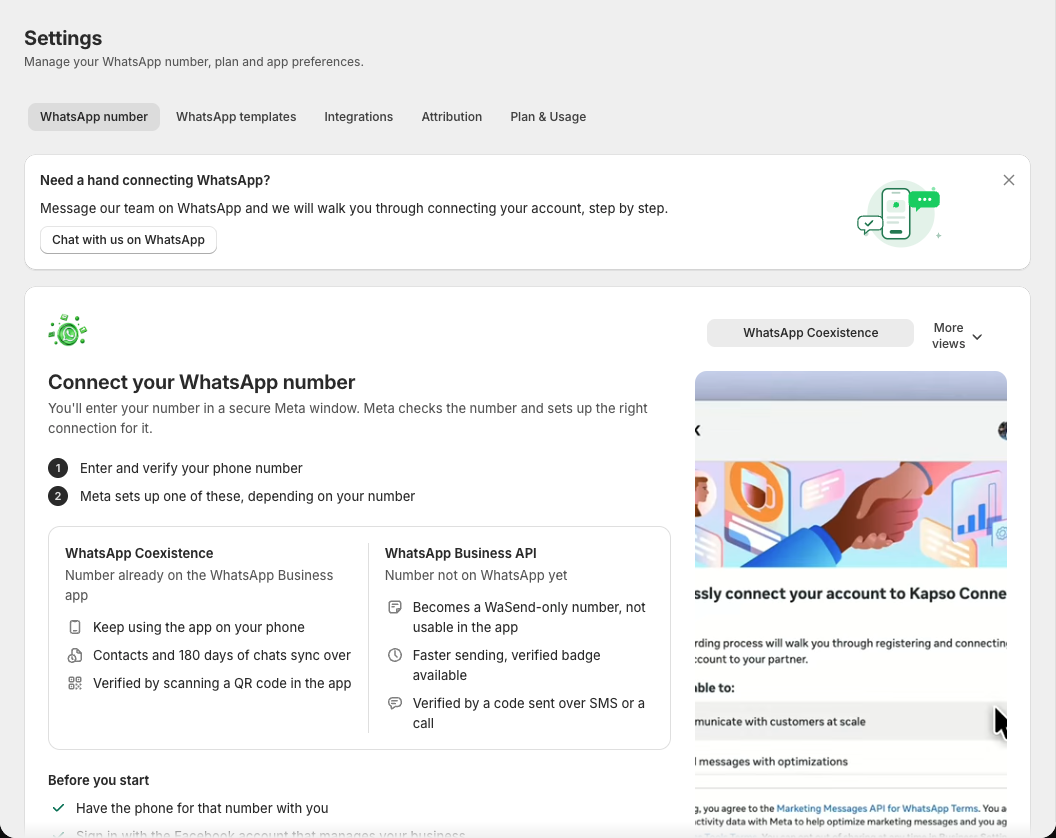
- In WaSend, go to Settings › WhatsApp number. Check the Before you start list on that screen.
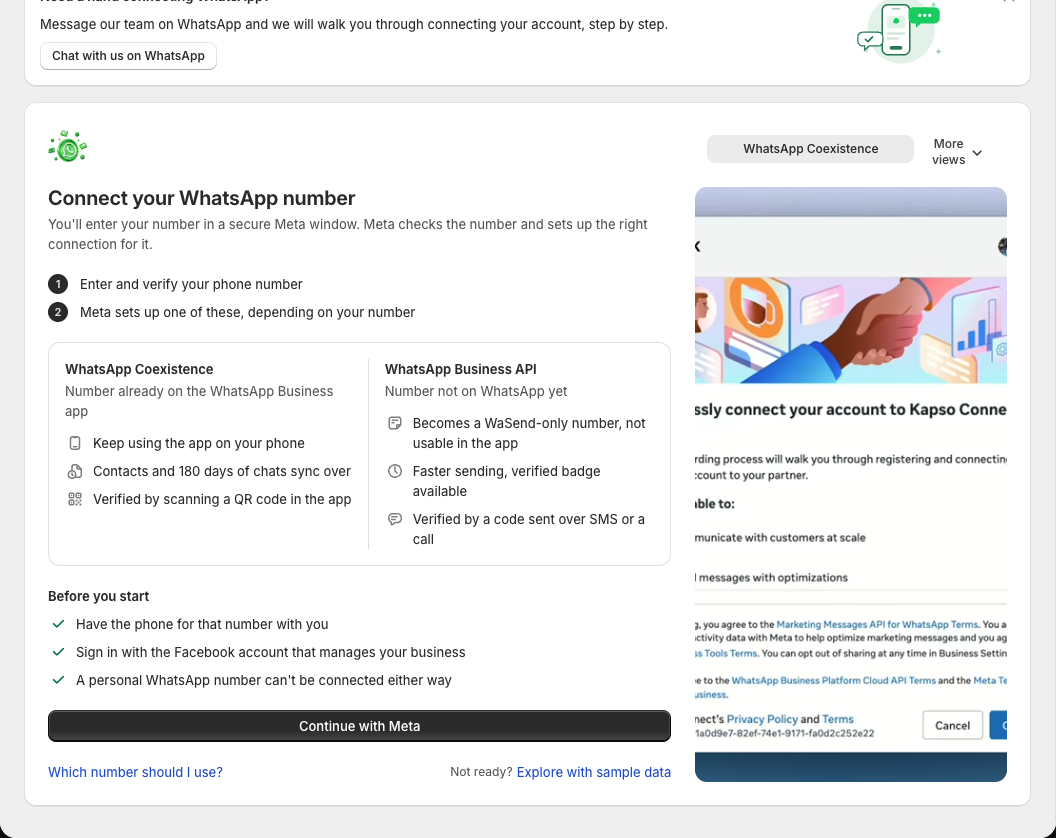
- Click Continue with Meta. A Meta pop-up opens. Log in with the Facebook account that manages your business.
- Follow Meta's screens. The order can change.
- Choose or create your business portfolio.
- Enter your display name and business details.
- Enter your number with its country code, then enter the code (SMS or voice call) or scan the QR code.
- Review permissions and finish.
Back in WaSend you'll see Account connected. Your number and its status appear in Settings.
You don't pick the connection type. Meta checks your number and sets up the right one.
| Type | For which number | Keep using the app? |
|---|---|---|
| WhatsApp Business API (recommended) | A number not on WhatsApp yet | No. The number works in WaSend only. |
| WhatsApp Coexistence | A number already on the WhatsApp Business app | Yes. Chats sync between the app and WaSend. |
Coexistence is supported, but it is less stable and more likely to hit locks and connection problems. For reliable sending, use a separate number on the Business API.
Not sure which to use? Click Which number should I use? on the connect screen.
What the statuses mean
If Send ready shows Needs action, automations and broadcasts are paused.
| Status (as shown) | What it means | What to do |
|---|---|---|
| Send ready: Ready | Phone connected and payment added. | Nothing. You can send. |
| Send ready: Needs action | Something blocks sending. The hint says what. | Fix the item in the hint. |
| Not connected | No WhatsApp account connected yet. | Connect in 3 steps above. |
| Registering | Number added but not registered. | Click Register phone number. |
| Unverified (phone) | Number not verified with a code. | Click Verify now, choose Text message or Phone call, enter the 6-digit code. |
| Offline / Migrated / Unknown | The number isn't active on this account. | Contact support. |
| Banned / Restricted (number or account) | Meta blocked or limited it. Sending is blocked. | Click Chat with support. Check the alert in WhatsApp Manager > Overview and appeal there. If the appeal fails, connect another number. |
| Payment required | No payment method in Meta. | Click Add payment method. |
| Display name: In review / Rejected / Not set | Meta is reviewing (1 to 2 days), rejected, or no name set. | Click Set display name or Submit new name. You can change it up to 10 times in 30 days. |
| Business name: Unverified | Business not verified. Optional for connecting. | Click View verification guide. |
| Quality rating: Green / Yellow / Red / N/A | How customers react to your messages. Red risks a limit downgrade. | Message only opted-in customers. Send relevant content. Don't over-send. |
Display name in review or rejected doesn't stop sending.
Costs & limits
- You pay Meta directly for conversation fees. WaSend adds 0% markup.
- Add a payment method in Meta (Add payment method in Settings), or sending stops.
- Can't add one on Meta (card or country limits)? Contact support.
- Your messaging limit starts at 250 unique customers per 24 hours. Verify your business or keep good quality to grow. You can keep sending while unverified, within your limit.
If something goes wrong
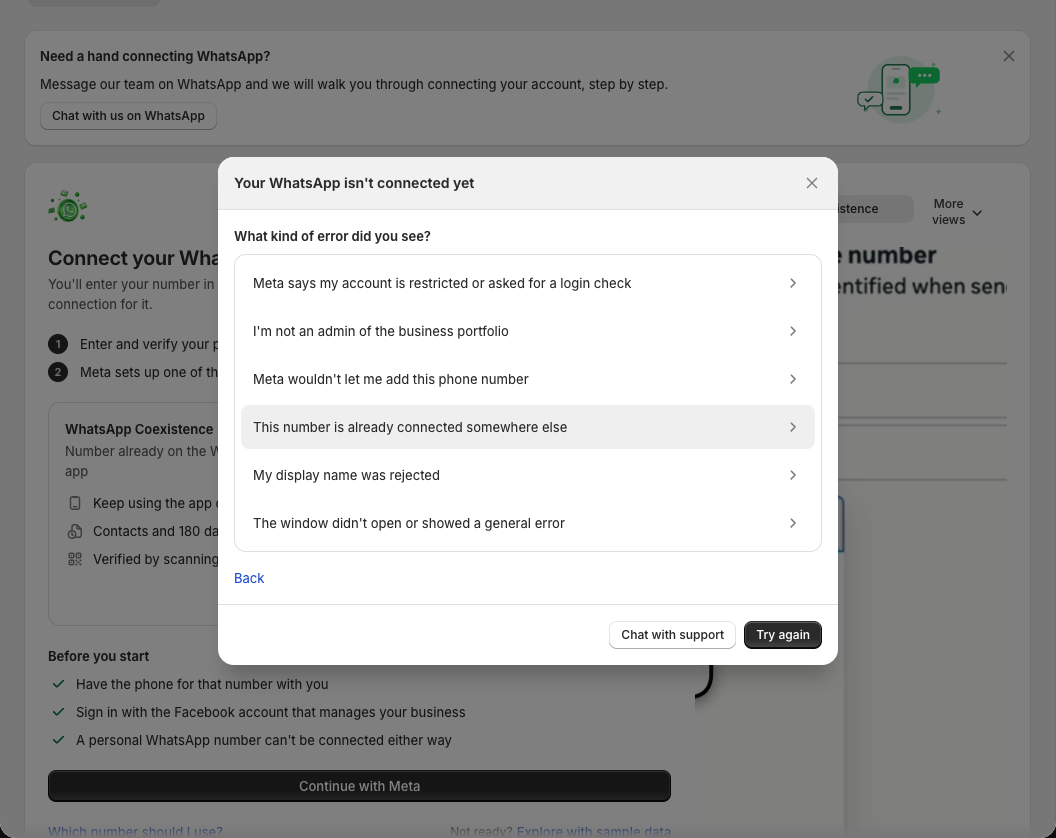
If setup doesn't finish, WaSend shows Your WhatsApp isn't connected yet and asks What happened? Pick the answer that matches. You can always click Try again or Chat with support.
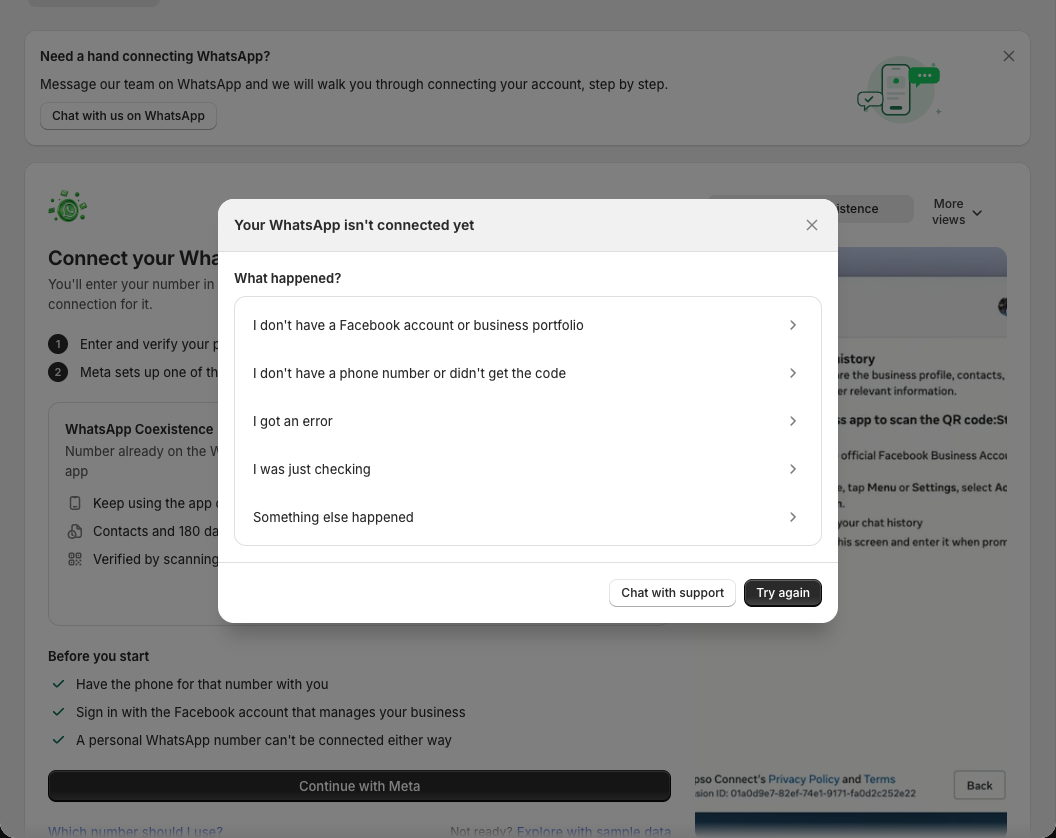
| Problem | Fix |
|---|---|
| No Facebook account or business portfolio | Create a Facebook account first. Meta creates the portfolio during setup. |
| No phone number, or no code | Use a number that gets SMS or calls. Choose a voice call and turn off any phone menu. Too many codes? Wait a few hours. No number at all? Contact support and we can provide one for your country. |
| Account restricted, or login check asked | New account: wait a few hours. Turn on two-factor authentication in Accounts Center > Password and security. If restricted, check Meta Business Support Home. |
| Not an admin of the portfolio | Ask an admin to give you admin access, or choose a portfolio where you're an admin. |
| Meta won't add this number | Use a mobile number with its country code and no special characters. |
| Number already connected elsewhere | WhatsApp Business app: Settings > Account > Business Platform, disconnect, wait 15 minutes. Other provider: remove it there. Personal WhatsApp: delete that account or use another number. |
| Display name rejected | Use a name that matches your business and follows WhatsApp's display name guidelines. Then click Submit new name. |
| Window didn't open, or general error | Use Chrome or Edge on a computer, allow pop-ups, try again in a few minutes. |
| QR code step failed (Coexistence) | Update the WhatsApp Business app, open it on your main phone, scan again. |
| WhatsApp Business app not eligible yet | Keep using the app for a while, update it if asked, then try again. |
| Business verification needed, or account/number limit reached | Finish verification in Business Suite > Security Center, or remove unused numbers in WhatsApp Manager. |
| Number linked to a Page, or still shared with a previous provider | Remove the Page from your portfolio settings, or remove sharing with the previous provider. |
| Too many attempts, system error, or Meta finished but connection didn't complete | Wait a few minutes and try again. Chat with us if it keeps failing. |
FAQ
I don’t have a phone number to connect. Can you provide one?
Yes. Contact support from the app (Chat with support), on WhatsApp at +84 846 043 192 or by email at [email protected], and we can provide a WhatsApp number for your country.
Can I use my personal WhatsApp number?
Not as it is. First remove it from personal WhatsApp: open WhatsApp › Settings › Account › Delete my account (back up your chats first, the history is deleted). The number becomes available within about 3 minutes. Or connect a different number.
Can I keep using the WhatsApp Business app on the same number?
Yes, with WhatsApp Coexistence: your chats sync between the app and WaSend. It is less stable than the Business API, so if reliable sending matters most, connect a separate number on the Business API. See WhatsApp Business API or WhatsApp Coexistence: which should you use?
I didn’t receive the verification code. What now?
Choose Voice call instead of SMS, and make sure the line has no phone menu (IVR) in front of it. If you asked for many codes, Meta may block new ones for a few hours, so wait and try again.
My number is stuck on Registering or Pending.
In Settings › WhatsApp number, click Register phone number. If it stays stuck, follow Guide to fixing a "Pending" phone number.
Can I send while my display name is in review or rejected?
Yes. Display name review never stops sending. If Meta rejects the name, click Submit new name and pick a name that matches your business and follows WhatsApp's display name guidelines.
Why are my automations and broadcasts paused?
Send ready shows Needs action: something blocks sending, most often a missing payment method in Meta or a number that isn't registered or is restricted. The hint under Send ready tells you which one. Fix it and you can send again.
Why can I only message 250 customers a day?
Every new WhatsApp account starts at 250 unique customers per 24 hours for messages you start (replies within a customer's open conversation don't count). Verify your business, or keep sending messages customers don't block, and Meta raises the limit to 2,000 and beyond.
Do I pay WaSend for WhatsApp messages?
No. Meta charges conversation fees directly to the payment method in your Meta account, and WaSend adds 0% markup. If you can't add a payment method on Meta, contact support and we'll help.
Need help?
Stuck, or seeing an error not listed here? Our team is happy to help.
- In the app: click Chat with support
- WhatsApp: +84 846 043 192
- Email: [email protected]